
oil-ui
AI agent skill for interface design, style comparison and visual review
Suggested prompts
About this skill
Oil UI
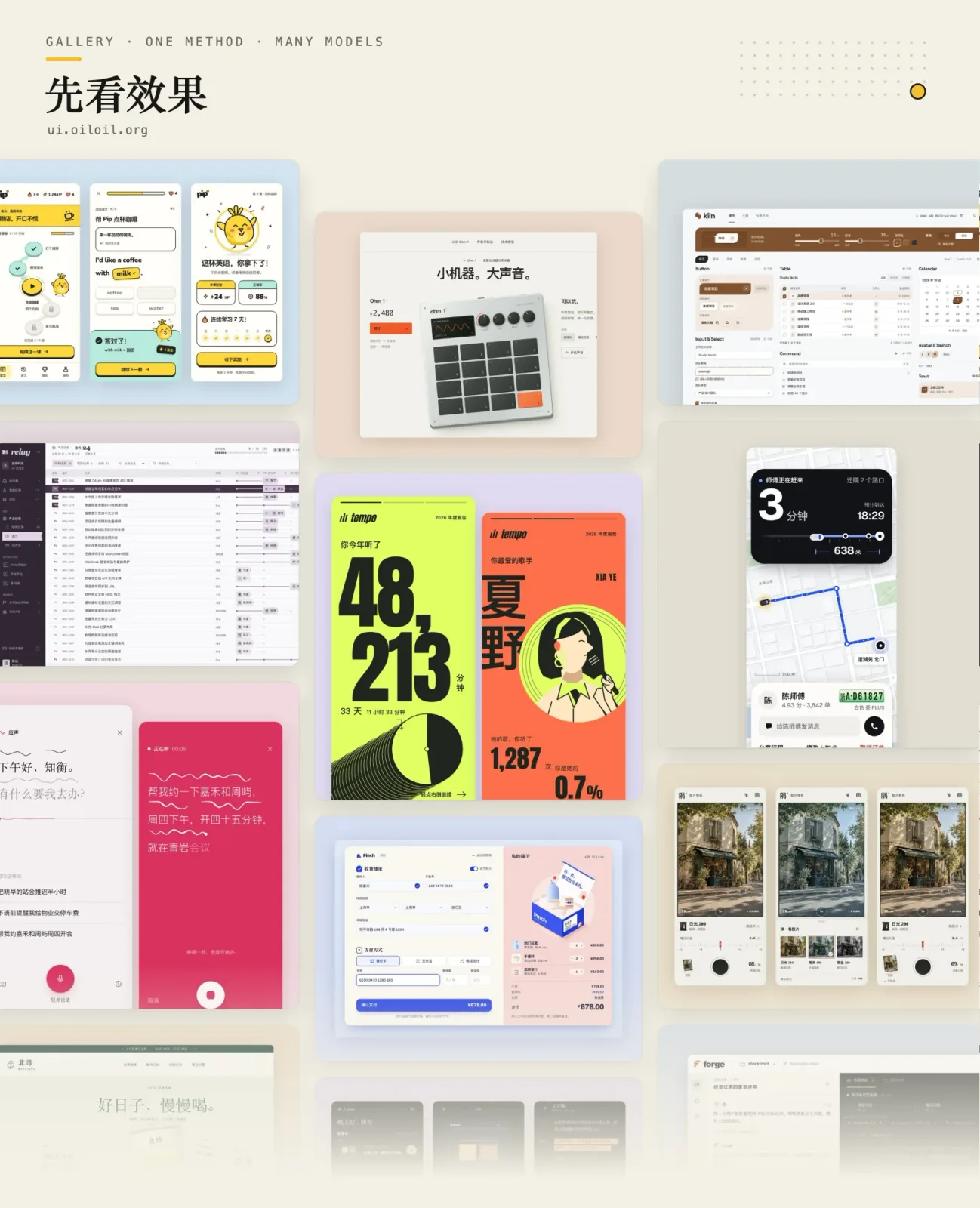
Oil UI is an interface design skill for AI agents. It explores a few genuinely different design directions side by side so you can choose one, then refines the result against real screenshots. It works for websites, apps, dashboards, and components, and delivers design notes, mockups, or a working interface.
Preview
When to use it
- Designing a new page or interface from scratch
- Exploring several genuinely different directions for the same page and comparing them side by side
- Polishing the visuals of an existing page
- Recreating a page from a screenshot
- Reviewing an interface without touching any files
What it does
- Understands the product before drawing anything. It names the product category, finds two or three peers with the most distinctive styles, and decides what to keep and what to change.
- Turns "premium" and "clean" into real decisions. It sets the tone from the subject, audience, and brand voice, then turns that tone into visible choices: typefaces, white space, and how much of the page uses color.
- Starts each direction from something concrete. A material in its setting, a scene, a character, or the visual language of another field.
- Settles the first screen before the copy. On pages where people browse, shop, or get work done, the first screen is the content itself. Only pages meant to persuade get a designed opening layout first.
- Keeps the directions truly different. Of layout, typography, color, and key imagery, any two directions may share at most one. If two look alike, it changes the layout instead of swapping colors.
- Leaves one moment people remember. One or two details are made exceptional, such as the response to a tap, a successful payment, AI at work, or a 404 page.
- Trusts the real screen. It opens the result at desktop and mobile sizes and checks screenshots, then does a round of subtraction: one focal point per page.
- Ships a comparison page. Several designs go side by side on one page for switching and comparing.
The style comparison page
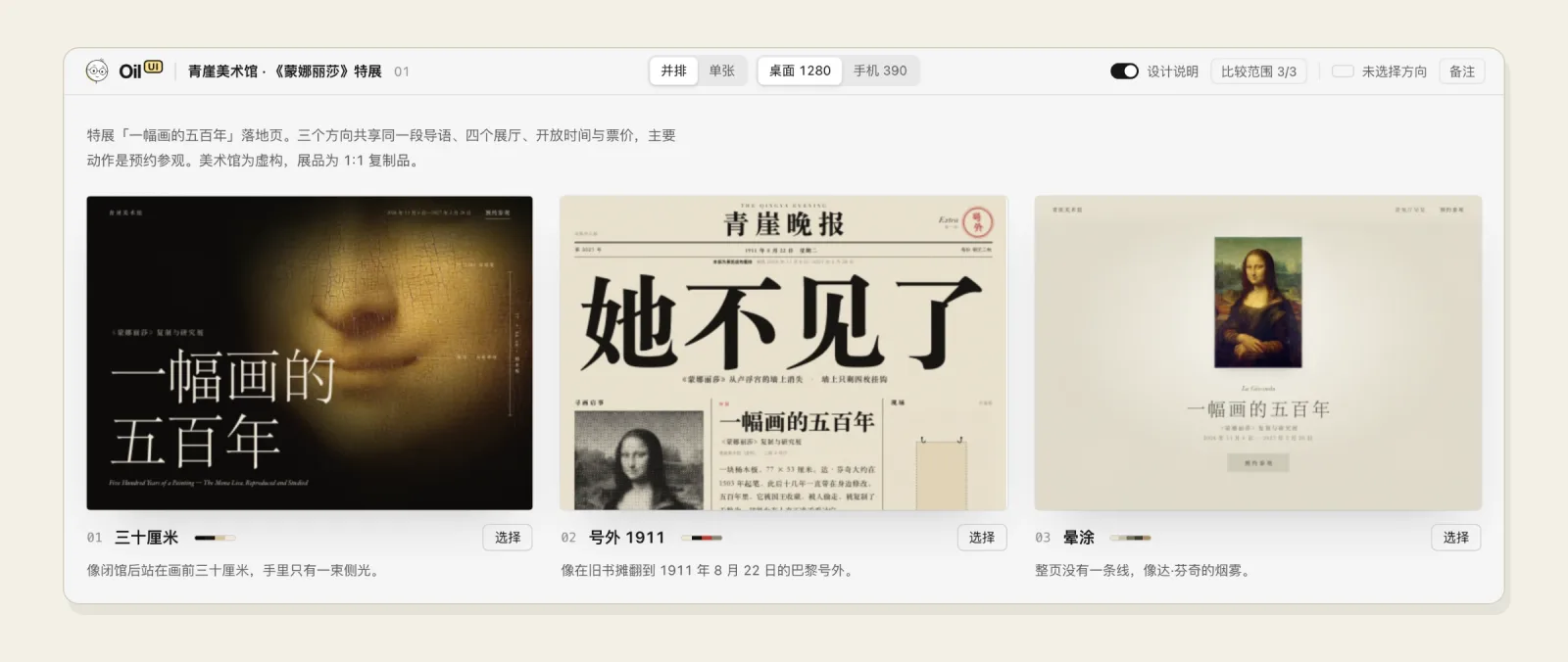
When you want to compare designs, it puts them side by side on one page. They can be HTML files, images, or running development pages, and the current version can go first as a baseline. You can switch between desktop and mobile sizes, open each one at actual size, and browse with the arrow keys. Click "Select" on the one you like, paste the copied sentence into your agent, and it carries on from there.
How it works
- You give it the task, plus any brand assets, screenshots, or existing project you have. It can start without references.
- It reads the product category, the job of the first screen, and the strongest peers, then builds a few genuinely different design directions.
- The previews go on one comparison page. You pick one and say what you like and dislike.
- It tightens the direction around your feedback, then builds the full layout and visuals.
- When a page is done, it checks screenshots at desktop and mobile sizes, brings in a reviewer who hasn't seen the work in progress when useful, and finishes with a round of subtraction.
What you need to provide
- What kind of interface you want, and whether you want design notes, mockups, or a working interface
- Optional: brand assets, reference screenshots, an existing project
- For real visual verification, your agent needs image-reading ability. For interaction verification, it needs a runnable environment.
What you get
- A direction comparison page (designs side by side, with desktop/mobile switching, actual-size viewing, and arrow-key browsing; clicking "Select" copies a sentence)
- Design notes: the user task, the primary action, the chosen style and direction, key states, device constraints, and what to verify
- Mockups or a working interface
- For reviews: evidence and concrete suggestions
Examples
- "Use oil-ui to explore a few design directions for this course booking product and build pages I can preview."
- "Create three designs with different typography, colors, and compositions. Put them on a comparison page so I can choose."
- "Polish this page using the project's existing design guidelines."
- "Review this homepage and explain what to change and how. Leave the files untouched."
- "Recreate this page from the screenshot and add a mobile layout too."
Open source vs. Pro
| Oil UI (open source) | Oil UI Pro | |
|---|---|---|
| Design directions, comparison page, visuals and motion, screenshot recreation, small games | ✓ | ✓ |
| Independent review | Scores the work and lists issues | Reviews and revises repeatedly toward a score of 9 |
| Detail checklist and subtraction | ✓ | |
| Interaction and states, forms, modals and popovers, multi-device layout | ✓ | |
| Dashboard and tool layouts | ✓ | |
| Existing project redesigns, single-component polish, card prototypes and effects | ✓ | |
| Full comparison page | examples at ui.oiloil.org |
If you already have Oil UI Pro, you don't need the open-source version. Installing both makes them compete for the same requests. Pro is described at ui.oiloil.org/en/pro.
Pairs well with:
- draw-ui: generate design images first, then implement the one you pick.
- oil-motion: use generated video or frame sequences for animations that change with scroll or drag.
Notes
- The core flow is host-neutral text work; it depends on no other skill and no specific model. The optional style comparison page generator needs the Python 3.10+ standard library, and its output only needs a modern browser.
- Local address candidates require the matching local development server to be running.
- Real visual verification needs image-reading ability; interaction verification needs an operable environment; independent review needs an isolated executor that can read images. When those are missing, it produces design notes or code and clearly marks the visual result as unverified.
- Component ownership, data flow, state correctness, and testing are out of scope, as are pure business logic, APIs, builds, deployments, and code cleanup with no visible UI change.
- It performs a version check while in use: at most once every 10 minutes online, checking and notifying only, without downloading or replacing this directory. Results are cached under
$XDG_STATE_HOME/oil/(default~/.local/state/oil/). SetOIL_NO_UPDATE_CHECK=1to skip it. - License: MIT